

How To Create Garmin Topo Maps - Part 4 - Transportation Data
Author: Dan Blomberg | Last updated April 2nd, 2016 at 02:52pm
Introduction
The 4th part of this tutorial details where to get and how to process transporation data. This includes roads, highways, railroads, ferry routes, and a few other key landmark features (such as major powerlines). In this tutorial's case we will be getting the most recent, free, roads data available which was released in 2007 and now updated yearly. The data comes from the U.S. Census Bureau.
Downloading The Transportation Data
The data will come from the U.S. Census Bureau which recently released the Tiger data in shapefile format.
- Go to the National TIGER/Line Shapefiles page (will open in new window).
- Select download and then web interface.
- Select the most current year (if the year doesn't have the layer you need select the previous year).
- For select a layer type pick "All Lines" under "Features"
- Click Submit
- From the drop down menu on the right select your state.
- Transportation data has to be downloaded on a per county basis. Select the first county from the drop down menu on the right and click "submit"
- Now select the next county and click Download.
- Repeat this process until you have all the counties.
- Extract each zip file into your transportation directory (they don't have to be in their own folders).
Combining The Transportation Data
There are three good ways to combine the data, I recommend using FWTools since it is the fastest method and you probably used for the contour data already.
FWTools
FWTools is the fastest and least time consuming way to combine the shapefiles but is slightly more advanced since you have to edit a .bat file.
- Install FWTools and remember its location (normally: C:\Program Files\FWTools2.1.0)
- Download the batch file we will need: Merge Transportation Batch File
- Extract the file to your transportation folder.
- You will need to edit it (right click on the file and click Edit)
- On the first line change "C:\your_map_directory\transportation" to match your directory, for example "C:\My Maps\transportation"
- On the second line set your location to the FWTools bin folder (the default for 2.4.7 on a 64-bit OS is already set).
- Save the bat file.
- Now double click on the bat file to combine all the contours together.
- Your final file is named mergededges.shp
You have now combined all the shapefiles together with FWTools. Contine to Processing The Data.
QGIS
A quick note; this may crash QGIS. In v2.12.2 I had issues with the merge crashing mid way through. If this happens just use the FWTools method above.
- Open QGIS and select all the county's edge files by going to Layer > Add Layer > Add Vector Layer
- In the lower right change All files (*) (*.*) to "ESRI Shapefiles (*.shp, *.SHP)
- Now select all the edge files (click the top one, hold shift and click the bottom one)
- Click open
- We will merge the shapefiles by going to Vector > Data Management Tools > Merge Shapefiles to One...
- Change the shapefile type to Line
- Set the input directory to the transportation directory
- For output save a file in your transportation directory and call it mergededges
- Click save
- Click OK
You have now combined all the shapefiles together with QGIS. Contine to Processing The Data.
Global Mapper
Creating the single shapefile in GlobalMapper is a little more resource intensive than using FWTools. It could take awhile to load the files on your computer.
- Open Global Mapper
- Click File> Create New Catalog
- Save the catalog as transportation
- Click Add Directory
- Select your transportation direct
- in the fields mask put *.shp as shown below:

- It will load all the shapefiles, click "Ok"
- Now click File>Export Vector Data>Export Shapefile
- Check the "Export Lines" box
- Save the file as mergededges.shp in your main /transportation folder
- You can now delete all the individual edge files.
Processing The Transportation Data
As with the water data, we will process the transportation data with PostGIS.
Putting The Data In The Database
- Open pgadmin III (in the start menu)
- Double click the PostgreSQL database to connect to it. Enter the password if required.
- Expand databases
- Click on postgis to access/initialize that database.
- Expand postgis
- Expand Schemas
- Expand public
- Expand Tables
- Make sure that you don't currently have a mergededges table. If you do, right click it and select Delete/Drop
- Now go to the Plugins menu and select "PostGIS Shapefile and DBF Loader 2.2"
- In the Import tab click "Add File"
- Select the mergededges.shp file and click Open
- Click Import
- If you run into an error follow the steps shown in the log window. I had to select options and change my type of LATIN1 for some of the files.
- Close the PostGIS Shapefile Import/Export manager.
Now that the data is loaded we will start processing it.
Processing The Data With PostGIS
- Still in pgAdmin III right click on tables and select refresh.
- You should now see a new table: mergededges
- Click the SQL query button.
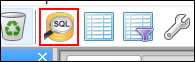
- Put the following query into the SQL editor box:
ALTER TABLE mergededges ADD COLUMN MP_TYPE character varying(50);
ALTER TABLE mergededges ALTER COLUMN MP_TYPE SET STORAGE EXTENDED;
ALTER TABLE mergededges RENAME COLUMN fullname TO name;
UPDATE mergededges SET MP_TYPE = '0x29' WHERE mtfcc = 'L4020'; -- Power lines
UPDATE mergededges SET MP_TYPE = '0x0106' WHERE mtfcc = 'L4031'; -- Ski Lift/Tram (Overhead Cable)
UPDATE mergededges SET MP_TYPE = '0x27' WHERE mtfcc = 'K2451'; -- Airport
UPDATE mergededges SET MP_TYPE = '0x1a' WHERE mtfcc = 'L4165'; -- Ferry
UPDATE mergededges SET MP_TYPE = '0x14' WHERE railflg='Y'; -- Railroads
UPDATE mergededges SET MP_TYPE = '0x06' WHERE roadflg='Y'; --make them all simple roads
UPDATE mergededges SET MP_TYPE = '0x01', "name" = concat('~[0x01]',substring("name" FROM '[0-9]+')) WHERE mtfcc='S1100'; -- Interstates (convert for shield)
UPDATE mergededges SET MP_TYPE = '0x02' WHERE mtfcc = 'S1200'; -- Other Highways
UPDATE mergededges SET "name" = concat('~[0x02]',substring("name" FROM '[0-9]+')) WHERE mtfcc='S1200' and "name" LIKE 'US Hwy %' and "name" NOT LIKE '%Byp%' and "name" NOT LIKE '%Bus%' and "name" NOT LIKE '%Spr%'; -- US Hwy (convert for shield)
UPDATE mergededges SET MP_TYPE = '0x0a' WHERE mtfcc = 'S1500'; -- 4WD
UPDATE mergededges SET MP_TYPE = '0x08' WHERE mtfcc = 'S1630'; -- Ramp
UPDATE mergededges SET MP_TYPE = '0x07' WHERE mtfcc = 'S1730' or mtfcc='S1750' or mtfcc='S1740'; -- Alley/Private Drive
UPDATE mergededges SET MP_TYPE = '0x16' WHERE mtfcc = 'S1710' or mtfcc='S1820' or mtfcc='S1830'; -- Trail
DELETE FROM mergededges WHERE MP_TYPE IS NULL; --remove all non-typed features - Click execute query (This could take quite a few minutes to run depending on how much data there is)

- Close the SQL window.
Export Shapefiles From PostGIS
- With pgAdmin III still open go to the Plugins menu and select "PostGIS Shapefile and DBF Loader 2.2"
- Click the export tab
- Click "Add Table"
- Select mergededges and click OK
- Click "Export"
- Go to the folder where your transportation data is stored and click "Open". This will overwrite the old transportation (mergededges) data and replace it with the modified data.
- Once the export is complete close the Loader
- To save space and not make a mistake later, in pgAdmin III delete each table. Right click on mergededges and click Delete/Drop.
- In that folder you can now delete everything that isn't the final mergededges file.
What's Next?
Next we will go over getting and processing the points of interest data. This next lesson should be pretty easy compared to these more challenging ones.
<-- Previous - Water Data | Table Of Contents | Next - Points of Interest -->
 Support GPSFileDepot
 Contact Us
 Subscribe to RSS Feed
 Share on FaceBook